
How To Use AI Home Exterior Design by Uploading Your Photo

Visualizing a home renovation before spending a dollar on contractors used to mean waiting weeks for architectural renderings and squinting at hand-drawn elevations. AI Renovation gives homeowners a faster path: upload a single photo of your house, pick a style, and receive a photorealistic redesign in seconds. This guide walks through every step, from framing the right photo to sharing the result with your contractor, so you can make confident design decisions about *finishes, palette, and proportion* without guesswork. Total time: about 15 minutes. Skill level: beginner.
What You'll Need Before You Start
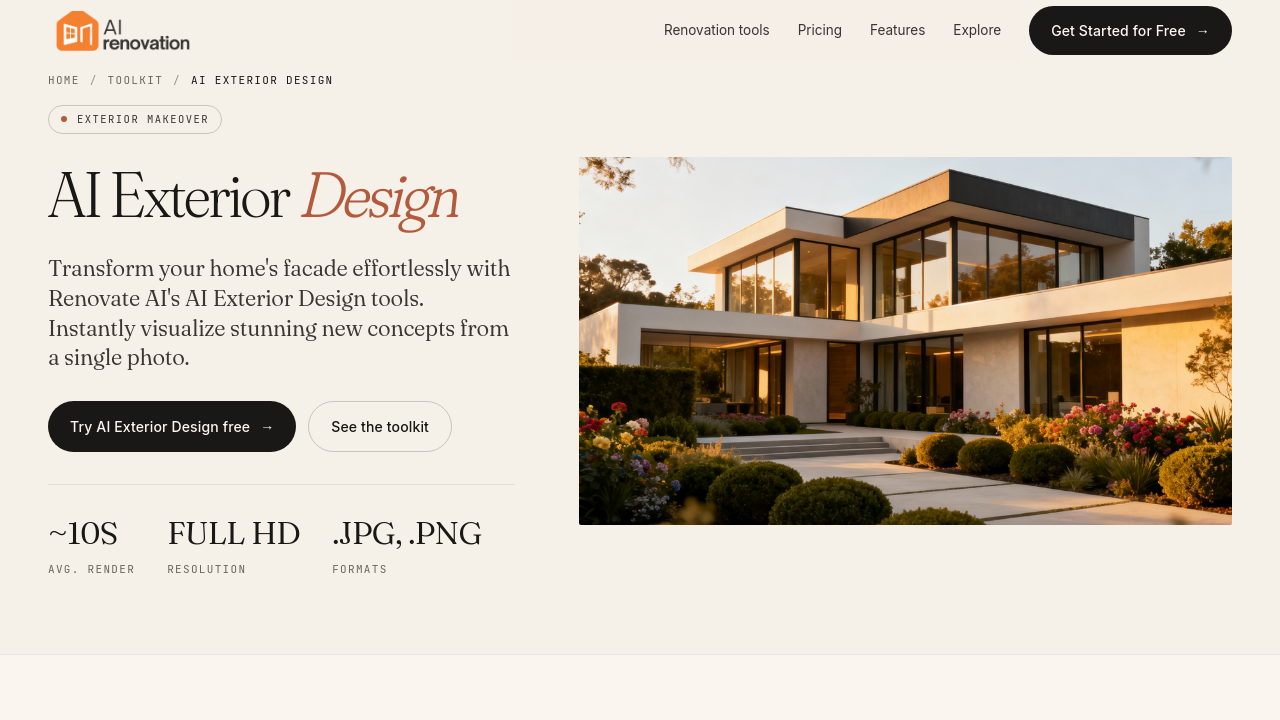
The good news is the bar is low. A modern phone, a clear afternoon, and a rough sense of the style you want is enough to generate a polished exterior concept. Most platforms, including the AI exterior design tool inside AI Renovation, run in a browser with no install required.
Hardware and software requirements
- A smartphone or digital camera that shoots at 1080p or higher.
- A photo saved as JPG, PNG, or WEBP. File limits range from 16 MB on roomdesign.io to 50 MB on floor-plan.ai.
- A browser and a stable internet connection. No design software, plug-ins, or even an account is required on most free home design AI tools.
- Optional but useful: a notes app where you can jot down material ideas, paint codes, or reference homes you admire.
Photo quality checklist
- Stand at street level, directly in front of the facade. Side angles confuse the model and produce warped rooflines.
- Shoot in soft daylight. Late morning or mid-afternoon gives even shadow data, which helps the AI architecture generator identify siding, trim, and roof material.
- Avoid heavy car or tree obstructions in front of the house.
- Have a rough style preference in mind: modern, farmhouse, colonial, craftsman, Victorian, Mediterranean, or Tudor.
Takeaway: a single front-facing daylight photo is the entire prerequisite list. Spend two extra minutes on the shot and the AI repays you in accuracy.
Before You Start: What to Back Up and What Can Break
Nothing to back up for this one. No structural change happens during a visualization, no file gets overwritten on your machine. What *can* break, though, is your expectation of what the render means. Treat the output the way you would treat a mood board, not a permit-ready drawing, and the AI home renovation workflow becomes a planning asset rather than a source of disappointment.
A few honest limits worth knowing before you generate:
- AI-generated exteriors are aesthetic previews. They do not account for local building codes, HOA covenants, setback rules, or structural feasibility. Always cross-check with your municipality before scheduling work, and use the render alongside an AI remodel planner for sequencing.
- Color and material accuracy is close, not exact. Verify paint codes against physical swatches and confirm material specs with suppliers before ordering. The home design hub has notes on translating screen color into real finishes.
- Run any generated concept past a licensed contractor before physical work begins. They will catch load-bearing walls, drainage paths, and trim transitions the AI cannot see.
Takeaway: the renders break nothing, but they are not engineering documents. Use them to communicate intent, not to skip a contractor.
Step-by-Step: How To Upload Your Photo and Generate a Design
Step 1: Take or select a clear exterior photo
Walk to the curb. Frame the full facade in a single shot from roughly eye height. Hold the phone level so vertical lines stay vertical. You should see the entire roofline, both ends of the house, and a sliver of foreground landscaping. Save the photo at full resolution before opening the AI home design platform.
Step 2: Upload the photo to the AI design tool
Open the exterior design generator in your browser. Drag the file into the upload zone or click "Browse Files" and select it from your device. You should now see a thumbnail preview with the original photo on the left side of the workspace.
Step 3: Choose your architectural style and material preferences
Pick a style from the dropdown. Leading platforms list 30 or more options, including Modern, Mediterranean, Farmhouse, Craftsman, Victorian, Tudor, Colonial, and Dutch Colonial Revival. According to floor-plan.ai's exterior design tool, the underlying model was trained on more than one million building images. If the platform offers a material menu, set siding (brick, stone, wood, vinyl, stucco) and roof material at this step. Cross-reference your choices with the house plans tool if you are also reconfiguring layout.
Step 4: Add optional text prompts for specific details
Use the additional-instructions field for the things a preset cannot say on its own. Concrete descriptors work best: "white board-and-batten siding with black window frames," or "add a stone veneer porch and cedar columns." Vague prompts like "make it nicer" produce vague results. The AI for home page collects example prompts that consistently produce clean output.
Step 5: Generate and review your AI exterior design
Click Generate. Most platforms return results in under 30 seconds; floor-plan.ai reports delivery under 3 seconds on its basic model. Review the render against your original photo using the side-by-side comparison. Check the rooflines, window placement, and material transitions before saving. If the AI removed a porch or shifted a window, regenerate with a lower transformation strength. Save promising versions to the explore gallery for later comparison.
Step 6: Download and iterate on your results
Download the high-resolution image. Then iterate. Run the same photo through two or three additional styles to give yourself a comparison set. Each variation costs nothing on the free tier of most tools, and the create workspace keeps your history in one place so you can shortlist favorites.
Takeaway: the workflow is shoot, upload, style, prompt, generate, download. Most homeowners finish a first concept inside fifteen minutes.
How To Get the Best Results From Your AI Exterior Design
Choosing the right photo angle and lighting
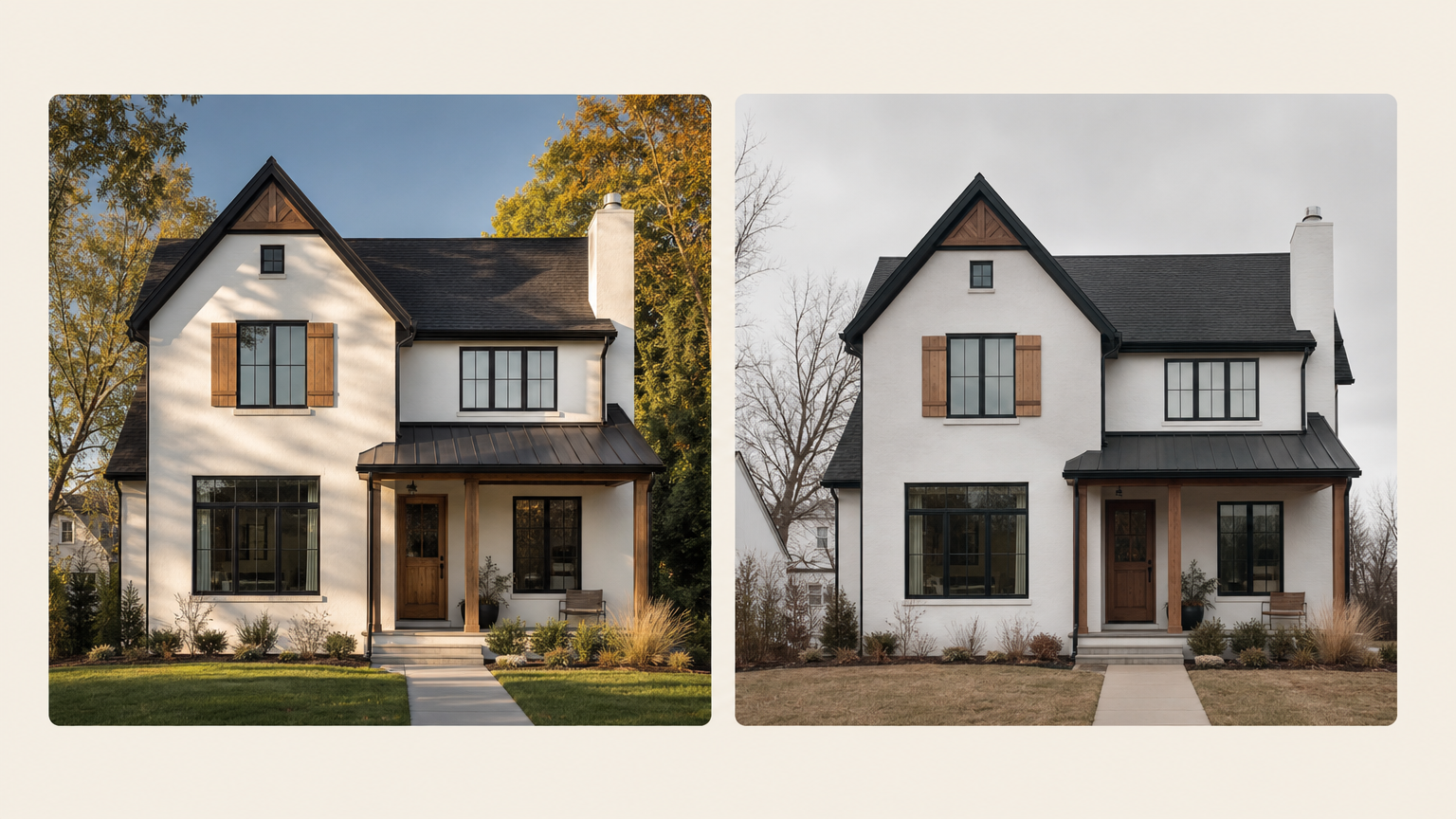
Front-view shots taken in full daylight outperform evening or overcast photos because the AI uses surface texture and shadow data to identify materials. If your only option is a cloudy day, shoot anyway, but expect softer material recognition. Keep the original resolution above 1080p; anything lower introduces pixelation that the AI generated home renders cannot recover.
Using style presets versus custom text prompts
Style presets give you broad direction in one click. Custom prompts give you precision over individual elements: roof color, trim style, window shape, porch material. The honest answer is to start with a preset to set the mood, then refine with a prompt for the one or two elements you care most about. The features overview breaks down which controls map to which kind of edit.
Generating multiple variations to compare options
Generate three to five variations of the same photo. Modern, farmhouse, and Mediterranean on the same facade tells you which silhouette your house actually wants. Save the set, sleep on it, then come back the next morning with fresh eyes. The AI app for house design keeps your variation history grouped by source photo, which makes the comparison step painless.
Takeaway: good photos plus specific prompts plus multiple variations is the formula. Skipping any one of the three is where most disappointing renders come from.
Troubleshooting Common Problems
A few failure modes show up again and again. The fixes are straightforward, and the tools index links each one to a dedicated workspace if you want to retry on a different module.
- Symptom: AI output looks blurry or distorted. Cause: Low-resolution source image or extreme angle. Fix: Re-shoot with a higher-resolution camera from directly in front of the facade.
- Symptom: The generated design ignores your style instructions. Cause: Vague or conflicting text prompt. Fix: Use concrete descriptors such as material type, color name, and element location, for example "charcoal asphalt shingles on the gable roof."
- Symptom: The tool fails to upload the file. Cause: Format not supported or file too large. Fix: Convert to JPG or PNG and compress under the platform's stated limit (16 to 50 MB).
- Symptom: Generated exterior removes windows or a porch. Cause: High style-transformation strength. Fix: Lower the transformation intensity or switch to "precise mode" if the platform offers one.
- Symptom: Colors look different on screen versus in print. Cause: Monitor color calibration drift. Fix: Use the hex or Pantone code from the AI suggestion and verify against physical swatches before buying paint.
Takeaway: most "the AI got it wrong" moments are actually input problems. Fix the photo or fix the prompt before fixing the platform.
What To Do With Your AI Exterior Design
Sharing designs with contractors and architects
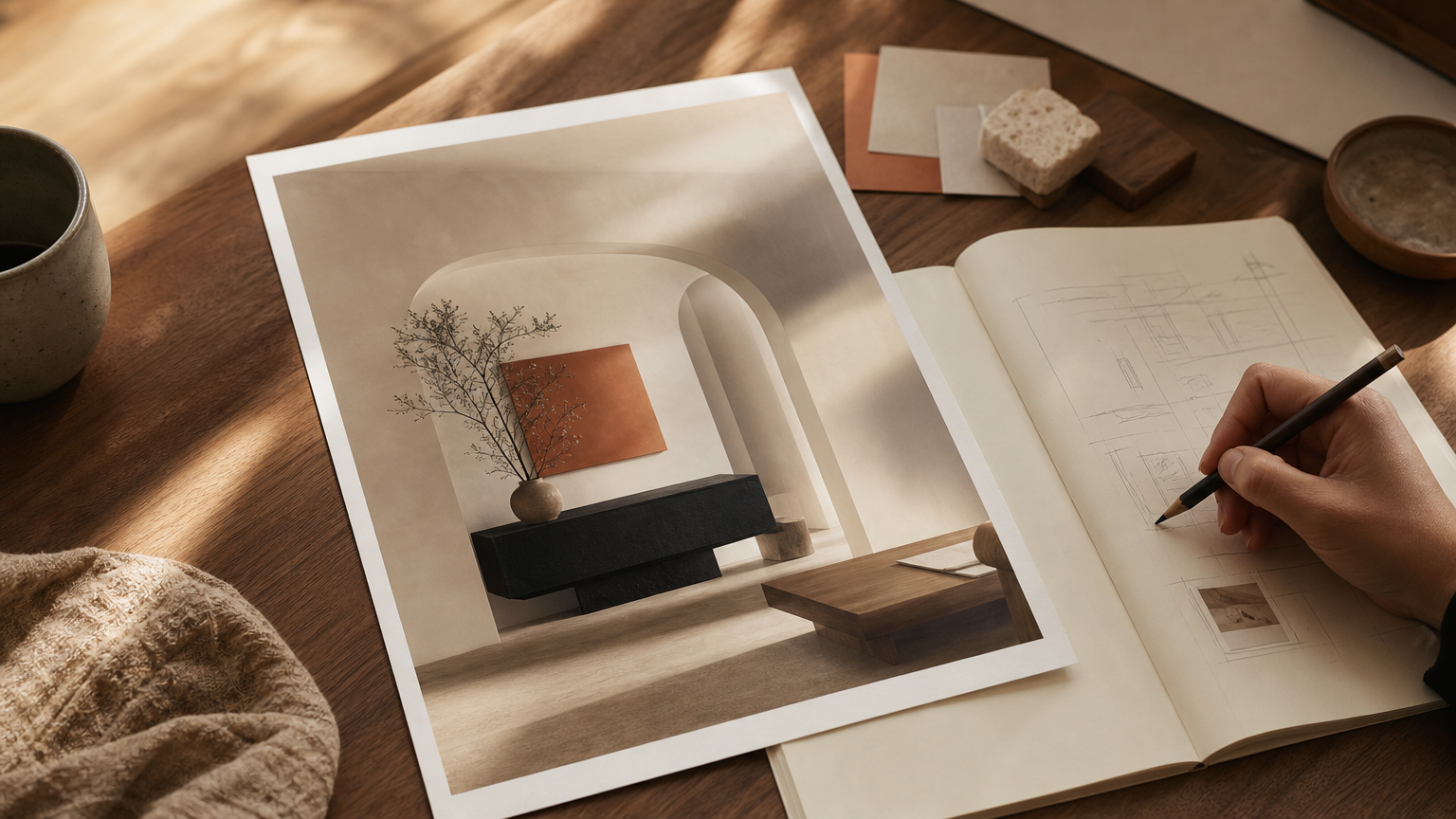
Download the highest-resolution version and email it directly to your contractor with a short note describing what you want kept and what you want changed. A clear visual reference cuts quoting time and reduces the chance of mid-project surprises. The 3D home design workspace is useful if your contractor wants to walk the concept in three dimensions.
Using visualizations to plan renovation costs
Multiple variations narrow your material and color choices before you ever request supplier quotes. That avoids the most expensive moment in any renovation, the change order issued after material is already onsite. Pair the render with a pricing overview to plan how many design iterations your project actually needs.
Boosting curb appeal and property value
Real estate professionals use AI exterior previews to showcase a property's potential. Research cited by DeHome.ai links thoughtful exterior renovations to a curb appeal uplift of up to 15% in market value. AI renders are communication tools, not architectural drawings, and they cannot be submitted for building permits, but they shorten the conversation between vision and quote. The AI home staging workspace extends the same idea indoors for sellers preparing a listing.
Takeaway: a good exterior render is a shared language between you, your contractor, and, eventually, your buyer. The faster everyone sees the same picture, the cleaner the project.
Frequently Asked Questions
Is AI home exterior design free without signing up?
Most platforms, including roomdesign.io and floor-plan.ai, offer a free tier with no login required. Free generations are typically capped per day. Paid plans unlock higher resolution, faster generation, and unlimited variations.
How clear does my photo need to be for AI exterior design to work?
Aim for at least 1080p resolution, taken in daylight, with the full facade framed from directly in front. Phone photos are fine. Blurry or heavily angled shots reduce material recognition accuracy and often produce warped rooflines.
Can I use the AI-generated exterior design with my contractor?
Yes, and you should. Download the high-resolution render and share it as visual reference for paint, siding, trim, and roof choices. Contractors use the image to quote accurately, but final structural decisions still require licensed review.
How long does it take to generate an AI exterior design from a photo?
Most tools deliver results in under 30 seconds. Floor-plan.ai reports under 3 seconds on its basic model. Total time from photo upload to a usable download, including style selection and prompt refinement, is typically under five minutes.
Does AI exterior design work for all house styles?
Yes. Models are trained across modern, traditional, colonial, craftsman, Victorian, Mediterranean, Tudor, and many regional variants. Historic or highly ornamental homes may need more specific text prompts to preserve original detailing the preset styles would otherwise simplify.
Will the AI exterior design show accurate colors and materials?
Colors and materials are close representations, not exact matches. Treat the render as a directional preview. Always verify hex codes against physical paint swatches and confirm material specs with suppliers before placing orders for siding, roofing, or trim.
Can I generate multiple design variations from one photo?
Yes. Most free platforms let you rerun the same source photo through different styles, prompts, and material presets without limit. Generating three to five variations is the recommended approach for comparing directions side by side.
Do AI exterior designs account for local building codes or HOA rules?
No. AI renders are visual concepts only. They do not check zoning, setbacks, height limits, HOA covenants, or historic district rules. Always verify regulatory compliance with your municipality and HOA before committing to any exterior change.
A Quiet Closing Thought
The most useful thing about uploading a photo of your house and watching it return in a different style is not the *wow* moment, though that is real. It is the way the renders quietly remove guesswork from a process that used to run on intuition and overpriced mockups. Take the photo, try three styles, sit with them. When you are ready to move from picture to plan, AI Renovation is built to carry the same image through cost planning, contractor conversations, and the next phase of your renovation. Your house, in better light.
---
*Built with The SEO Agent.*
Ready to get started? Try our Exterior House Remodel App, or Home Exterior Design AI.